

I’m revisiting my best web hosting recommendations for 2026 . So, I’m getting hands on with hosts again and answering the question: is Namecheap still cheap and what’s the catch, if any?
Namecheap’s cheapest hosting option is half the price of competitors like Hostinger and Bluehost and you still get a website builder and email included. Let’s see how good it is. Start the clock!
Start the clock 0:00
Signing up
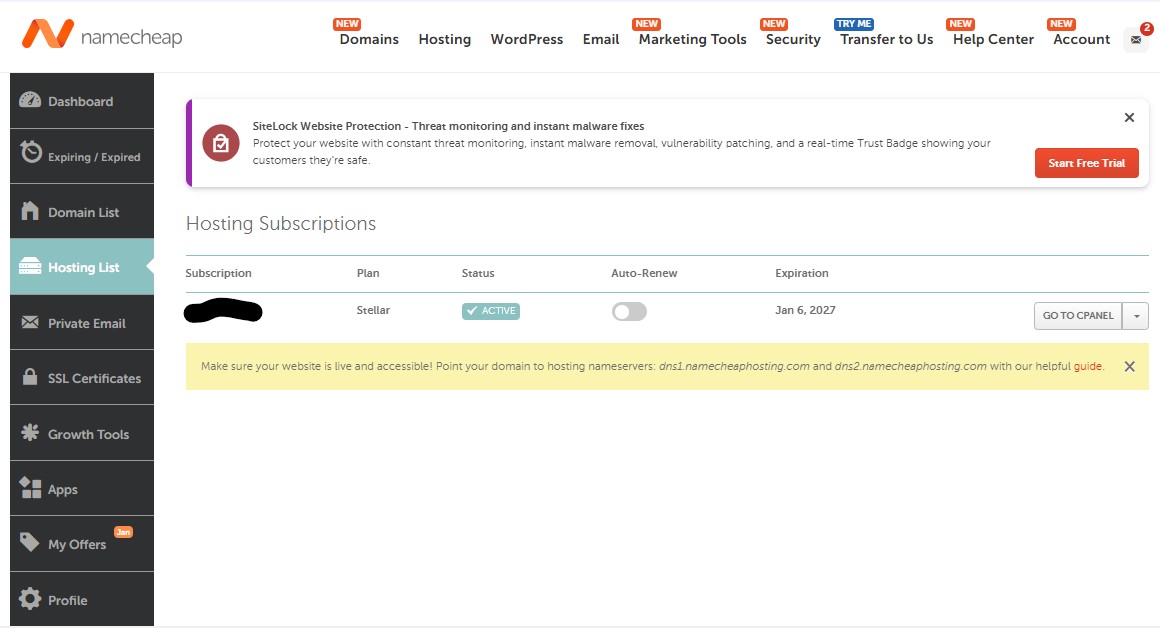
I didn’t screenshot the sign up process but it was as you would expect: Choose the hosting plan, enter your personal details, enter your payment information, and then you land on the dashboard.
Some notable things here: You don’t get a temporary domain so you either need to buy one, use the free one, or use one you already have. I used the one I already had with Namecheap. The point here is that you need to make a permeant decision quite soon in your journey.
Unlike some of the other hosts, you’re not put through to the page builder immediately. You need to click go to cPanel to start making your site.
Time on the clock 3:15
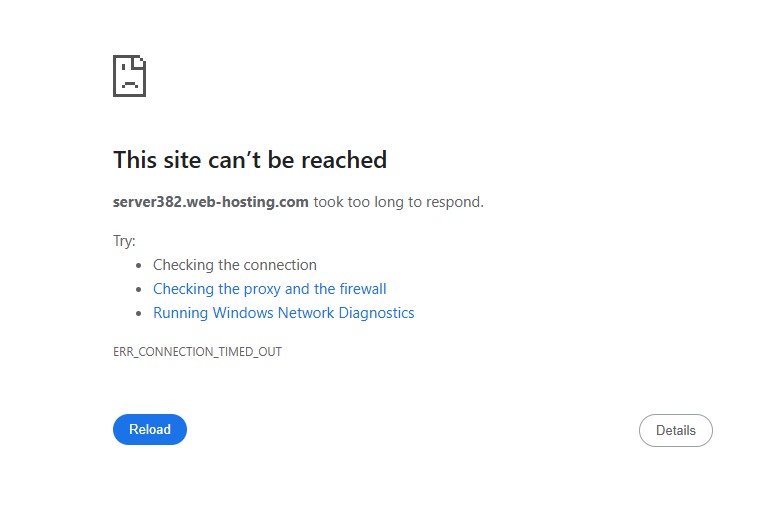
Uh-oh. The server couldn’t be reached. It’s probably because the account had just been created so I waited a couple of minutes and refreshed.
It still did not work and there was a message telling me to –
“Make sure your website is live and accessible! Point your domain to hosting nameservers: dns1.namecheaphosting.com and dns2.namecheaphosting.com with our helpful guide.”
I thought Namecheap took care of this after I pressed ‘connect domain’ when I purchased the hosting plan but apparently not. Doesn’t matter, there are some step-by-step instructions.
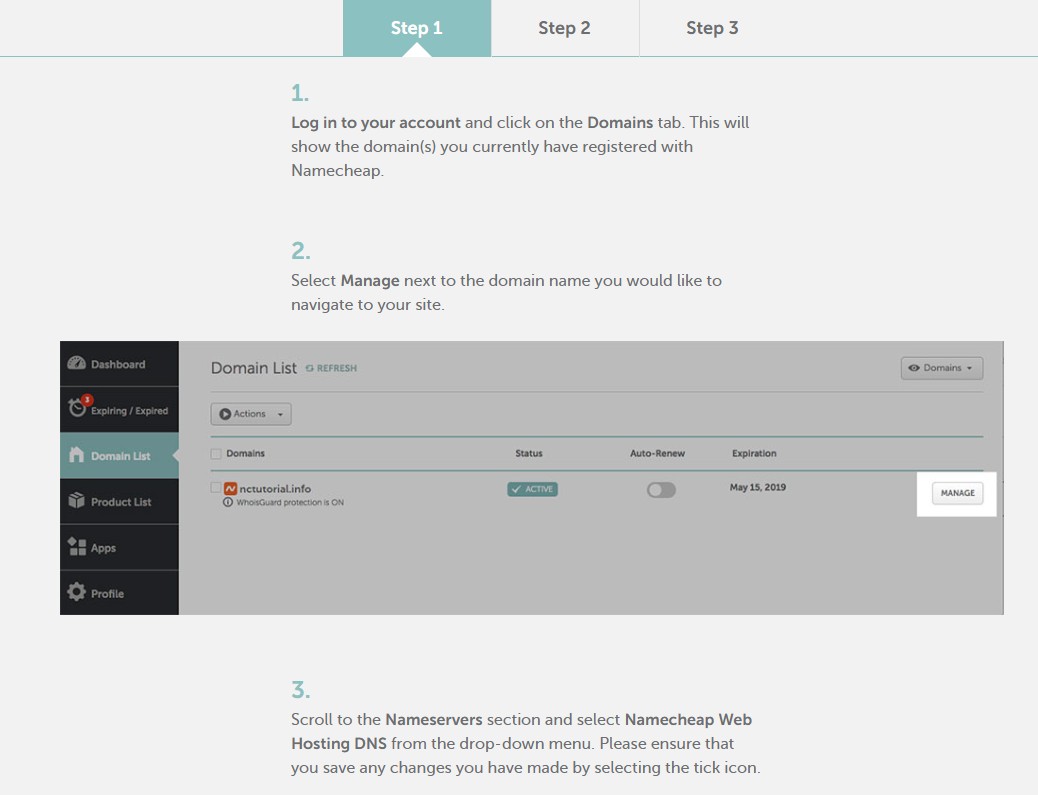
That was pretty simple but only because I knew what I’m doing. I can see how this could be a frustrating process if you didn’t. Namecheap tell you what to do but it’s a bit convoluted. All I had to do was select ‘Namecheap web hosting DNS” from a drop down list but the instructions told me to add the nameservers “dns1.namecheaphosting.com and dns2.namecheaphosting.com “. This is basically the same thing but if you didn’t know that, you’d be wasting time trying to figure it out.
Time on the clock 72:03:15
Three days later my DNS records had not propagated. So, probably not DNS propagation. Turns out the link to cPanel was blocked by my work network for an unknown reason. I moved over to my personal laptop and worked on things from there.
Time on the clock 15:27
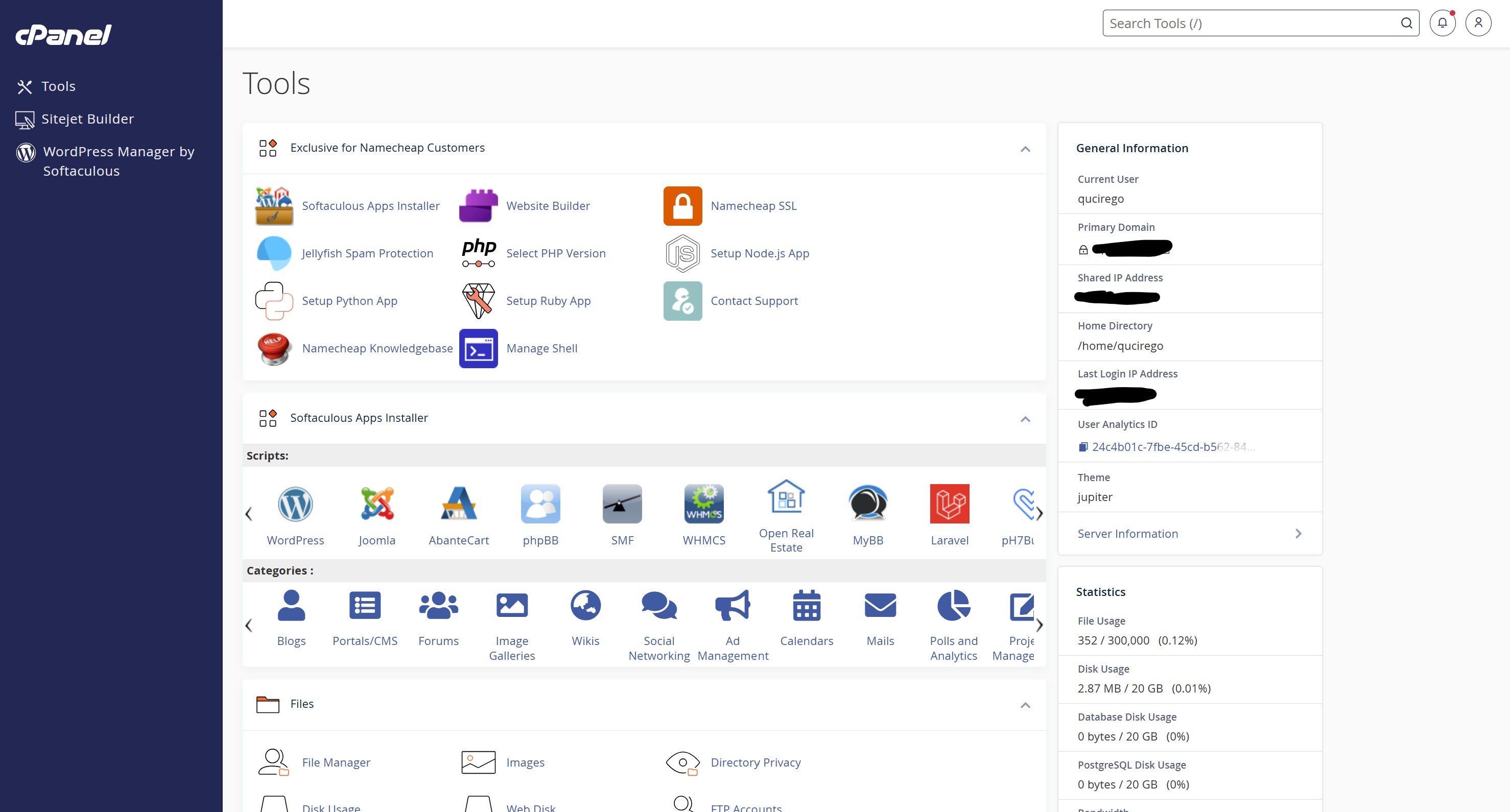
I’ve taken those three days off the time because that’s not really fair. After I could access cPanel things moved a lot faster.
Instinctively I pressed WordPress.
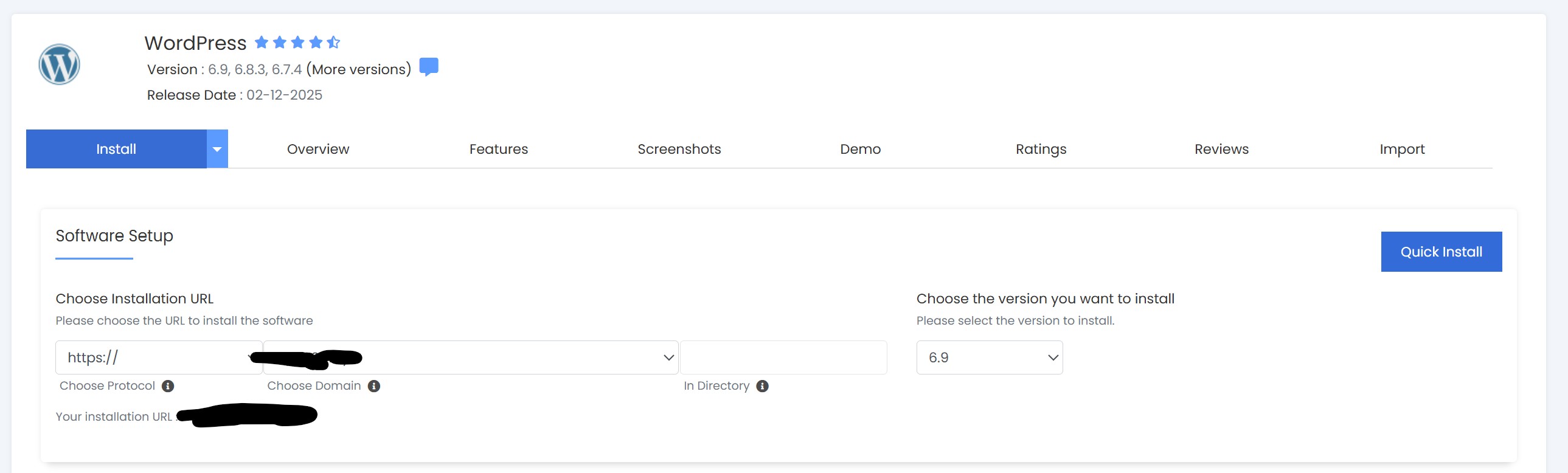
I then quickly backtracked as I remembered that there is a Namecheap AI website builder that I wanted to try.
Back in cPanel it was not obvious where the AI website builder was. I assumed it’s the website builder but that was all I could do…Assume. The process is not very streamlined or beginner friendly.
Time on the clock 20:13
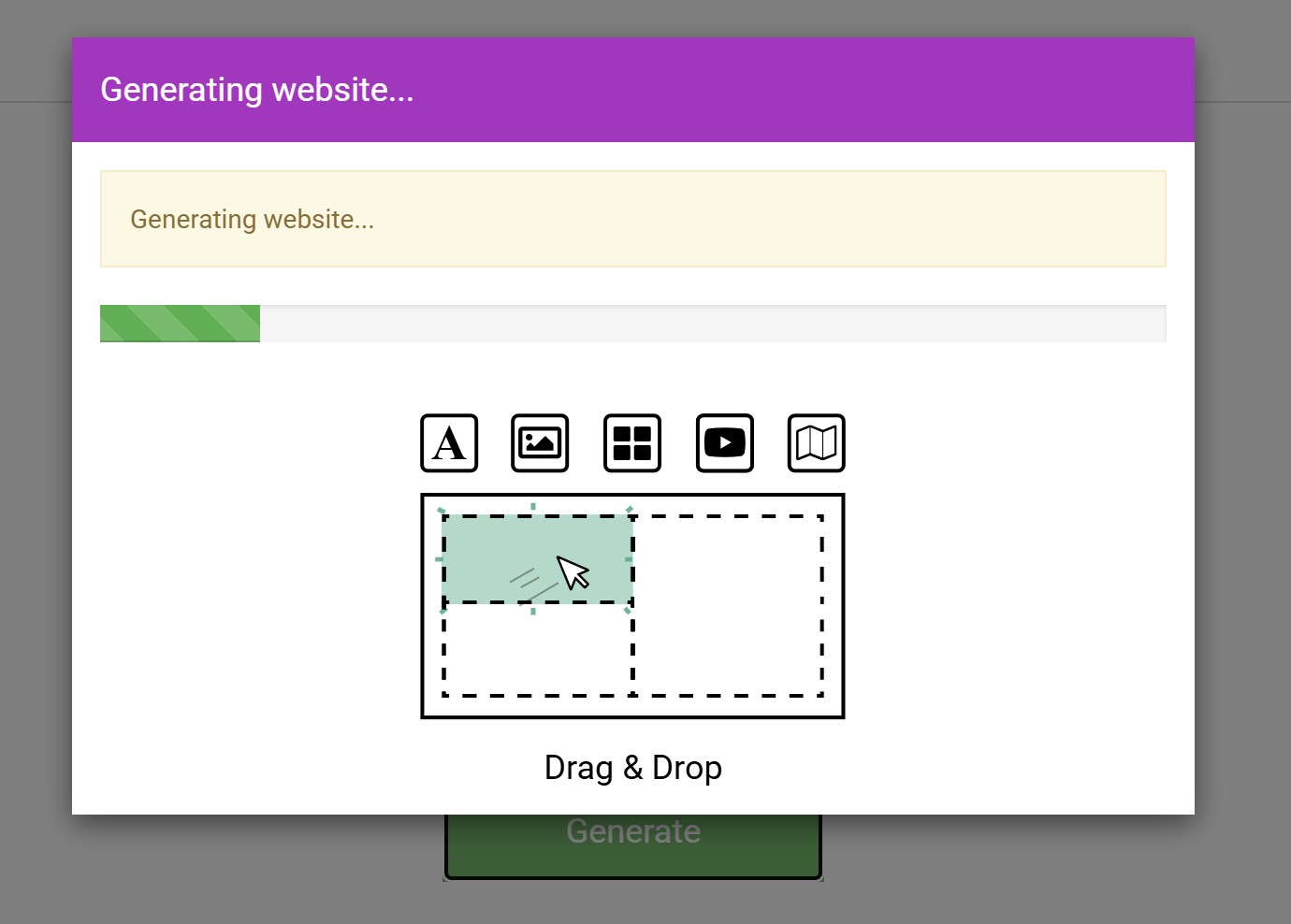
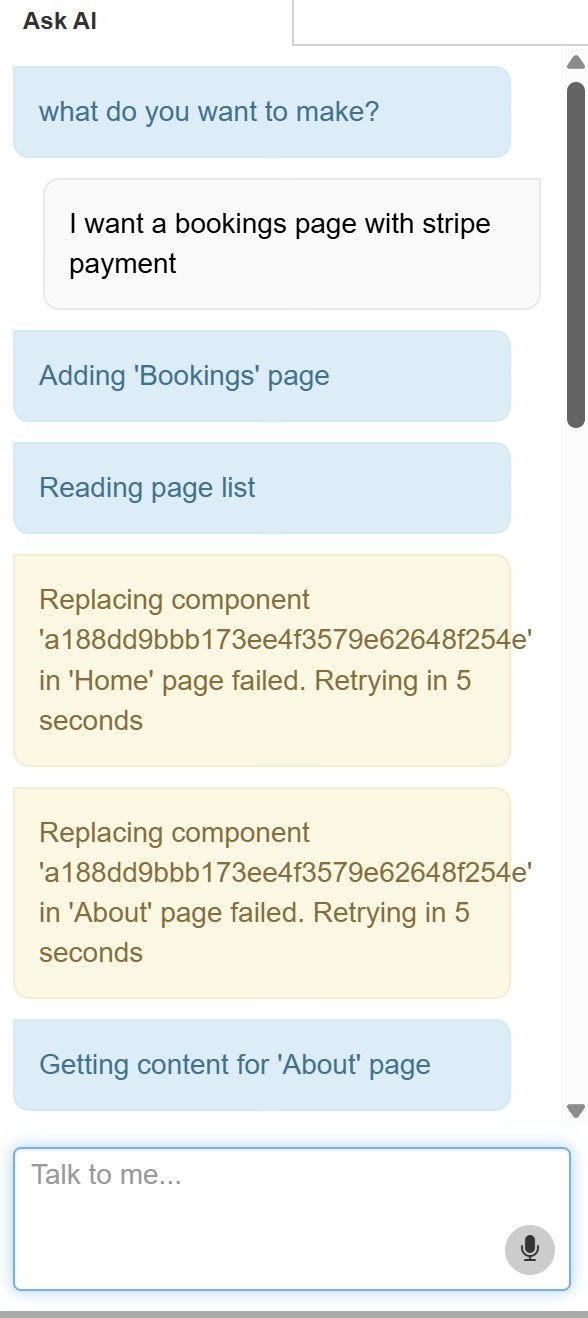
I was right! I followed the usual process of telling the builder my idea and then pressed build.
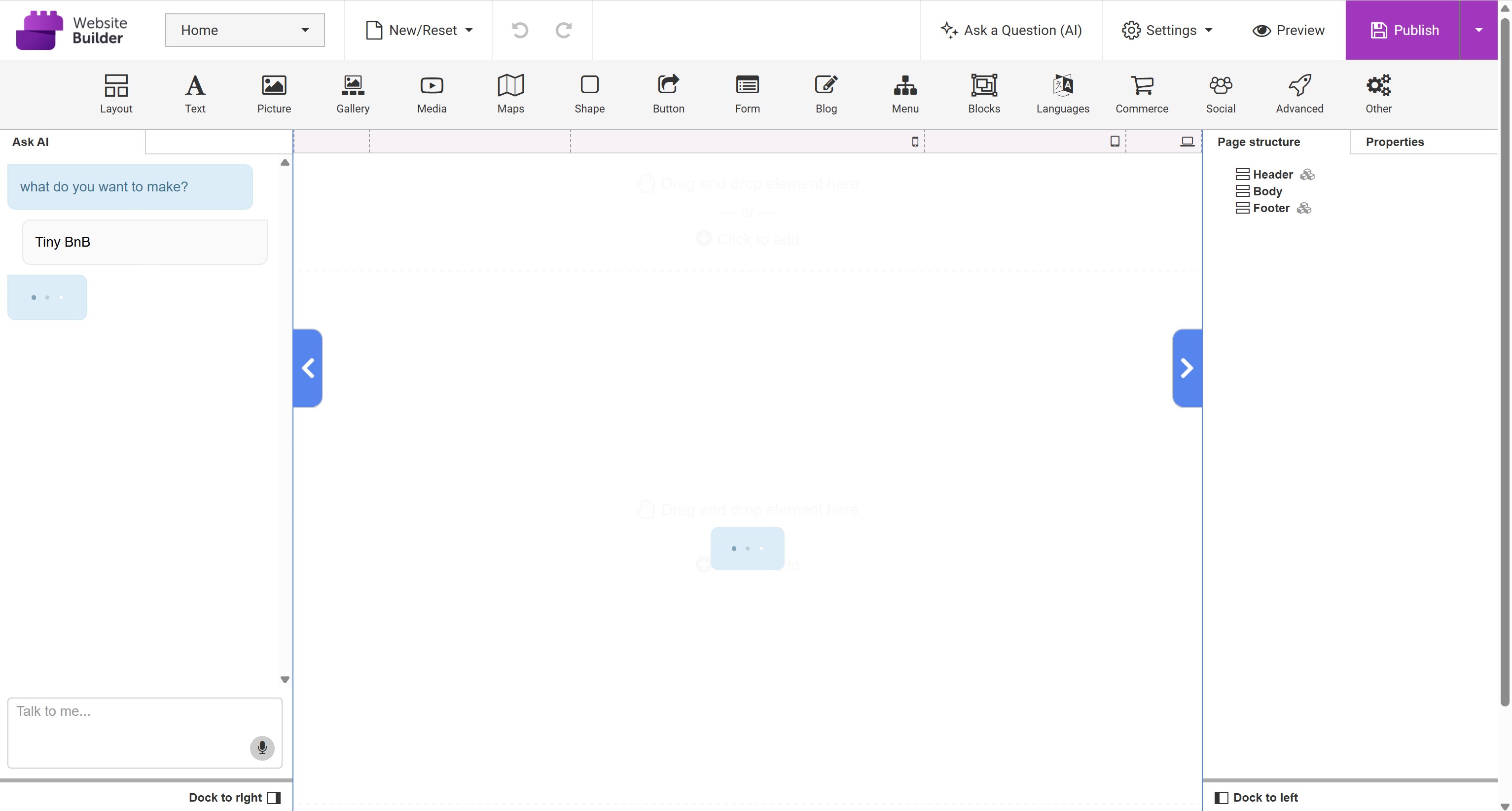
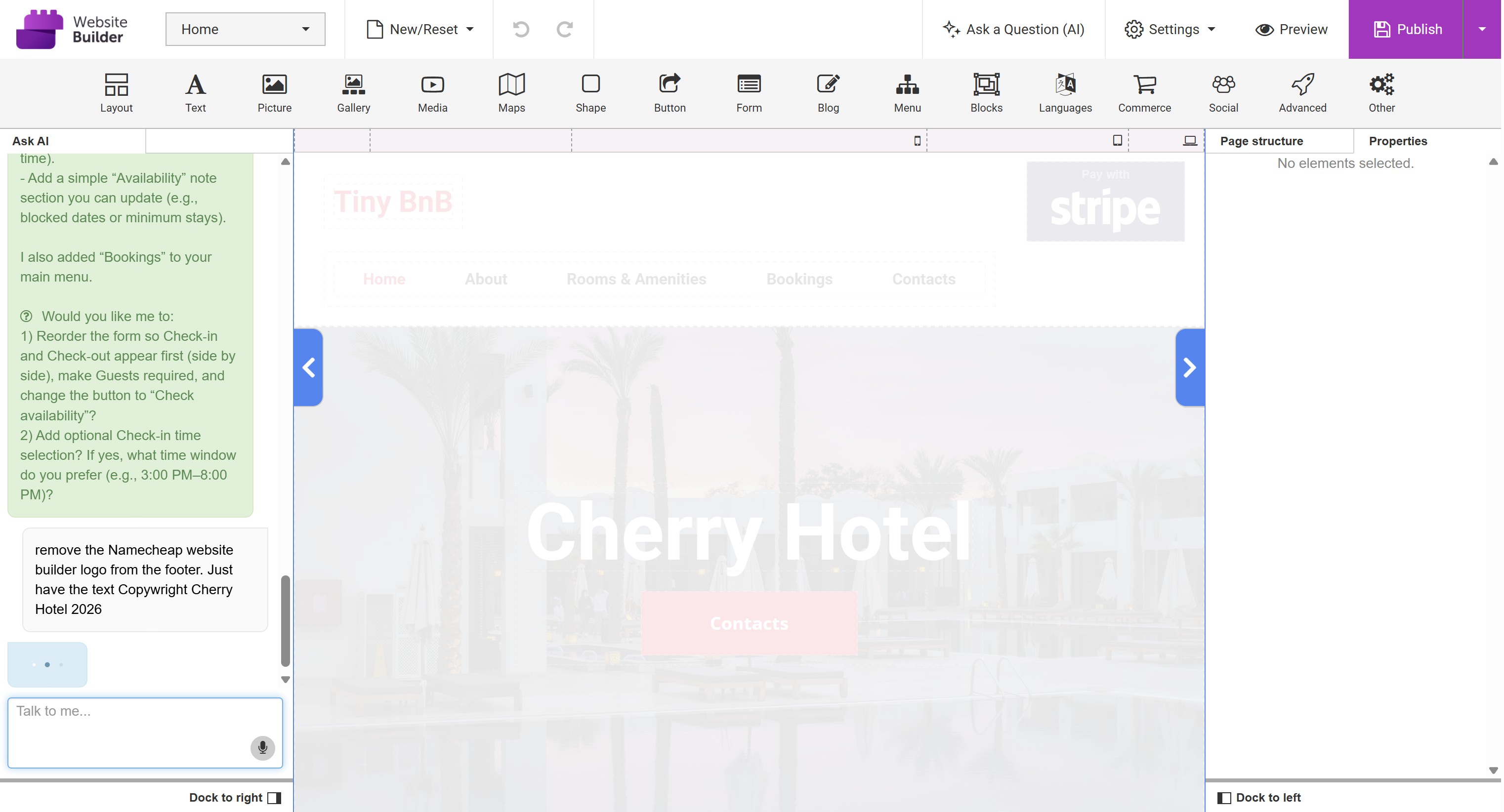
Time on the clock 50:13
Integrated into the builder was an AI tool that would do the things that I asked it to do.
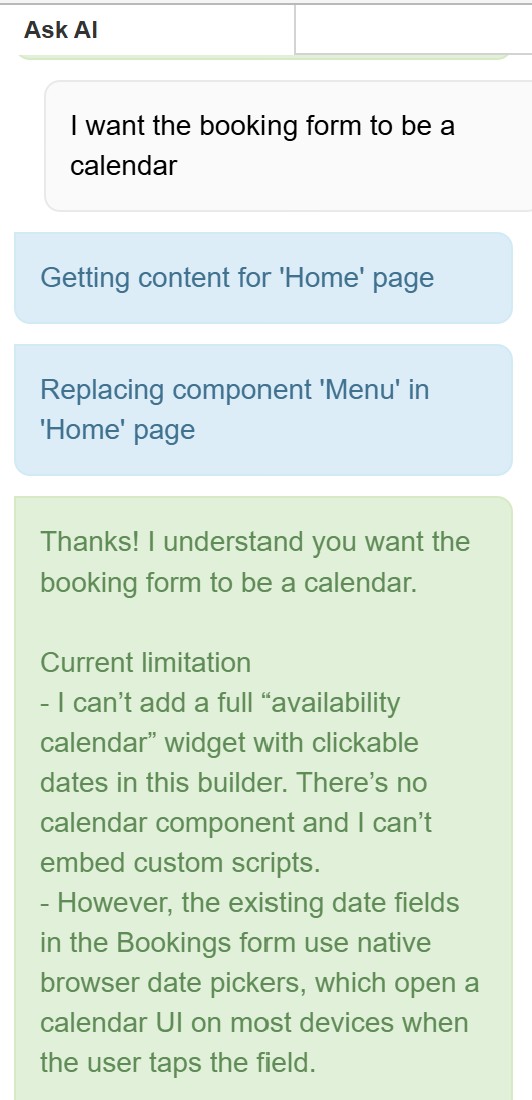
If it could. When it couldn’t it gave me good advice on alternative options.
Overall impressions
In my opinion this is the best budget hosting option. Especially as it includes email and an AI website builder.
You can get started right away with a money back guaranteeView Deal
The AI website builder is pretty cool! However, the process of getting there is not very streamlined.
Once there, it’s easy to use but it feels a little unfinished and a little like a budget option (which it is).
Overall, Namecheap is cheap, and in the last few minutes of this test I ran some performance benchmarks too and things are OK.
For a budget option, it’s very good but complete beginners might be scared off.
